
What you need
- A Teams channel for the messages, for example UAT in the project's team.
- Permission to add workflows to that channel. In most organisations every team member may; some IT departments switch Workflows off. Then ask your IT department.
- Admin rights in your UAT Studio workspace.
Connect a Teams channel
Create the workflow in Teams
- In Teams, open the channel, click ⋯ (More options) next to its name and choose Workflows.
- Choose the template Post to a channel when a webhook request is received.
- Give it a name such as UAT Studio, check the account it runs under and click Next.
- Check the team and channel, then click Add workflow.
- Teams shows an address that starts with
https://. Click the copy button next to it. Keep the window open until you have pasted it in step 3.
Lost the address? In Teams, open Workflows, open the workflow, and click the first step (When a Teams webhook request is received) to see it again.
Add Microsoft Teams in UAT Studio
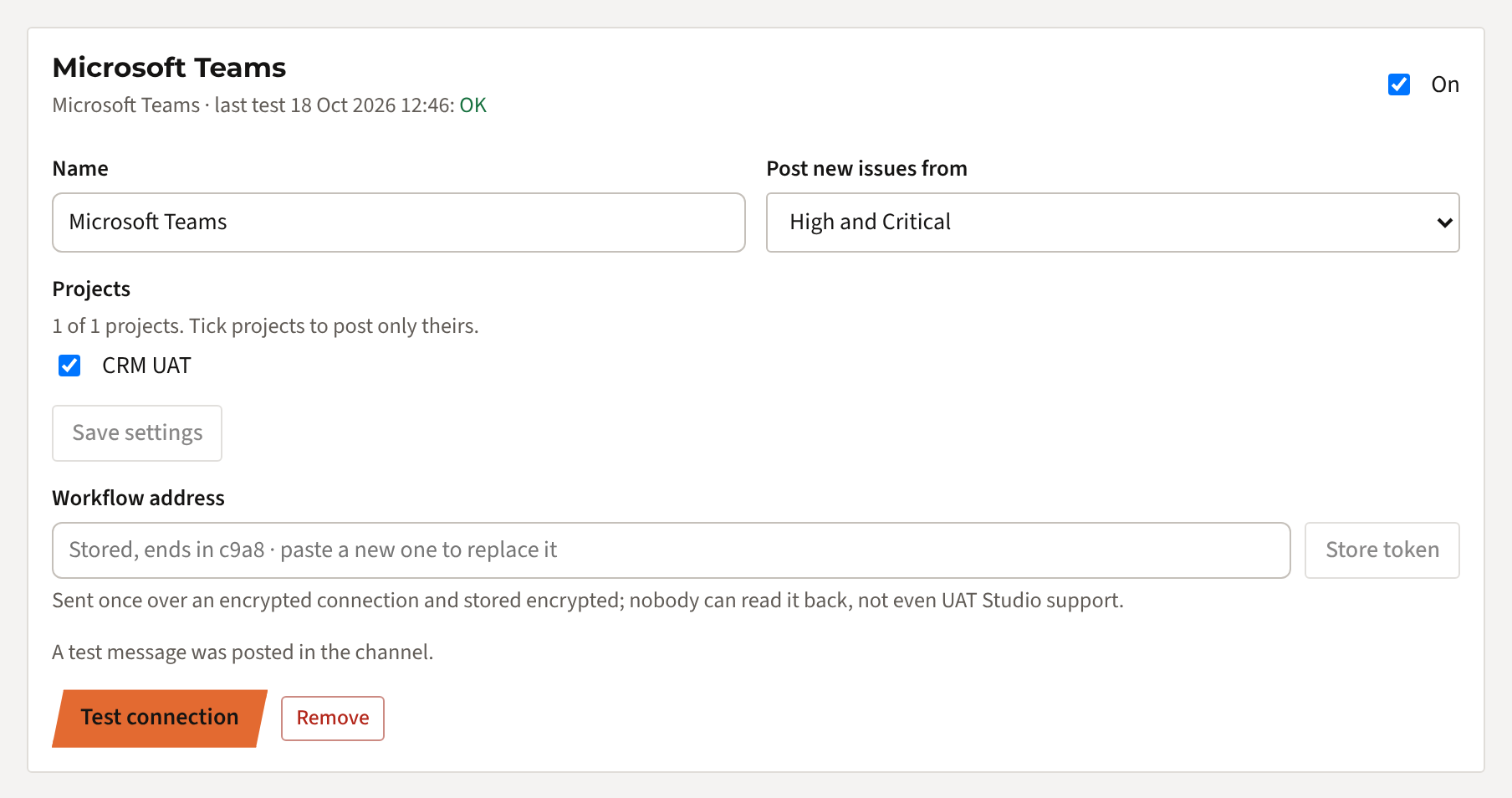
In UAT Studio, open your workspace and click Connections. Under Add a connection, choose Microsoft Teams and click Add.

Then choose which issues get a message:
- Post new issues from: Critical only, High and Critical (the default), Medium and higher or Every new issue. Status changes of those issues are posted too, such as when one is fixed.
- Projects: tick the projects this channel is about. Tick none, and every project of the workspace is posted.
Click Save settings. One channel per project? Add Microsoft Teams once more for each channel.
Store the workflow address
Paste the address from step 1 under Workflow address and click Store token. You'll see Token stored with the last four characters. From then on the address can't be read back, only replaced.
Test the connection
Click Test connection. A card UAT Studio is connected appears in the channel, and the connection shows a green check with the time of the test.
What gets posted
- A new issue at or above the severity you chose: a card with the title, the description, severity, status, the test and step, who found it and the ticket in Jira or Azure DevOps if there is one.
- A status change of such an issue, for example ISS-012 is now Ready for retest.
- Every card has a button Open in UAT Studio. Only people with access to the project can open it.
- By hand: on any issue, an admin can click Send to Microsoft Teams to share it, whatever its severity.
Who can do what
If something goes wrong
| You see | What to do |
|---|---|
| This is not a Teams workflow address | Copy the address of the workflow itself (step 1), not the link to the channel or the team. |
| Teams does not know this address any more (404 or 401) | The workflow was removed or switched off. Create it again and store the new address. |
| The test works, but no cards for new issues | Check the severity you chose and the ticked projects, and that the connection is On. Then send one issue by hand with Send to Microsoft Teams: if Teams refuses it, you see why. |
| No Workflows in the channel menu | Your IT department has switched Workflows (Power Automate) off. Ask them to allow the template Post to a channel when a webhook request is received. |
| Connections are not part of your plan | Connections come with Team, Partner and Enterprise. Your admin can upgrade under Plan & billing. |
Still stuck? Mail support@uat.studio with the message you see. Never send us the workflow address itself.
Want the messages somewhere else, such as Slack or your own system? See Connect a webhook.
How we handle the address
- The address goes from your browser to our server once, over an encrypted connection.
- It is stored encrypted (AES-256). The key to decrypt it is kept separately from the database.
- Nobody can read it back: not in the app, not through support.
- Cards contain the issue text and the name of the tester who found it, never files. Choose a channel whose members may see the UAT.
- Remove the connection in UAT Studio or the workflow in Teams, and the messages stop straight away.